




Advanced Search

sip24.pw

Active Carder
Joined
04.05.26
Messages
25
Reaction score
6
Points
3
📞 SIP24.CC: Complete Zoiper Setup & Custom Caller ID Guide 📞

SIP24.CC provides direct access to high-performance voice infrastructure with advanced caller ID spoofing and clean routing. Forget the public garbage apps and broken Telegram bots — stable operations require proper server configuration and reliable routing lines.

This guide walks you through connecting your SIP24 trunk to Zoiper and configuring custom caller ID spoofing for outbound calls.

Full Walkthrough: Connecting Zoiper on Your Phone

This guide walks you through downloading Zoiper, creating a SIP account inside the app, and linking it to your SIP24 credentials so you can start making calls. It should take about 5 minutes.

Step 1 — Install Zoiper Zoiper is a free softphone app available for both Android and iOS. Search for "Zoiper" on the Google Play Store or Apple App Store and install it, or use the direct links below:


Step 2 — Open Zoiper and Allow Permissions When you first launch the app, it will ask for microphone and speaker access. Tap Allow for both — without microphone access, calls will connect but you won't be heard. Once permissions are granted, head into the app's Settings menu to begin adding your account.


Step 3 — Add a New Account Manually Go to Accounts and tap the "+" button to add a new account. Zoiper will ask if you already have a SIP account — since you're a SIP24 user, select "Yes". On the next screen, skip the provider list and tap "Manual configuration" instead — this lets you enter your SIP24 credentials directly.


Step 4 — Enter Your SIP24 Credentials You'll now be asked for a SIP Username, SIP Password, and Domain. You'll find all three in your SIP24 dashboard under SIP Account — copy each value exactly as shown there. Also make sure SRTP encryption is toggled on before saving, so your calls stay encrypted.
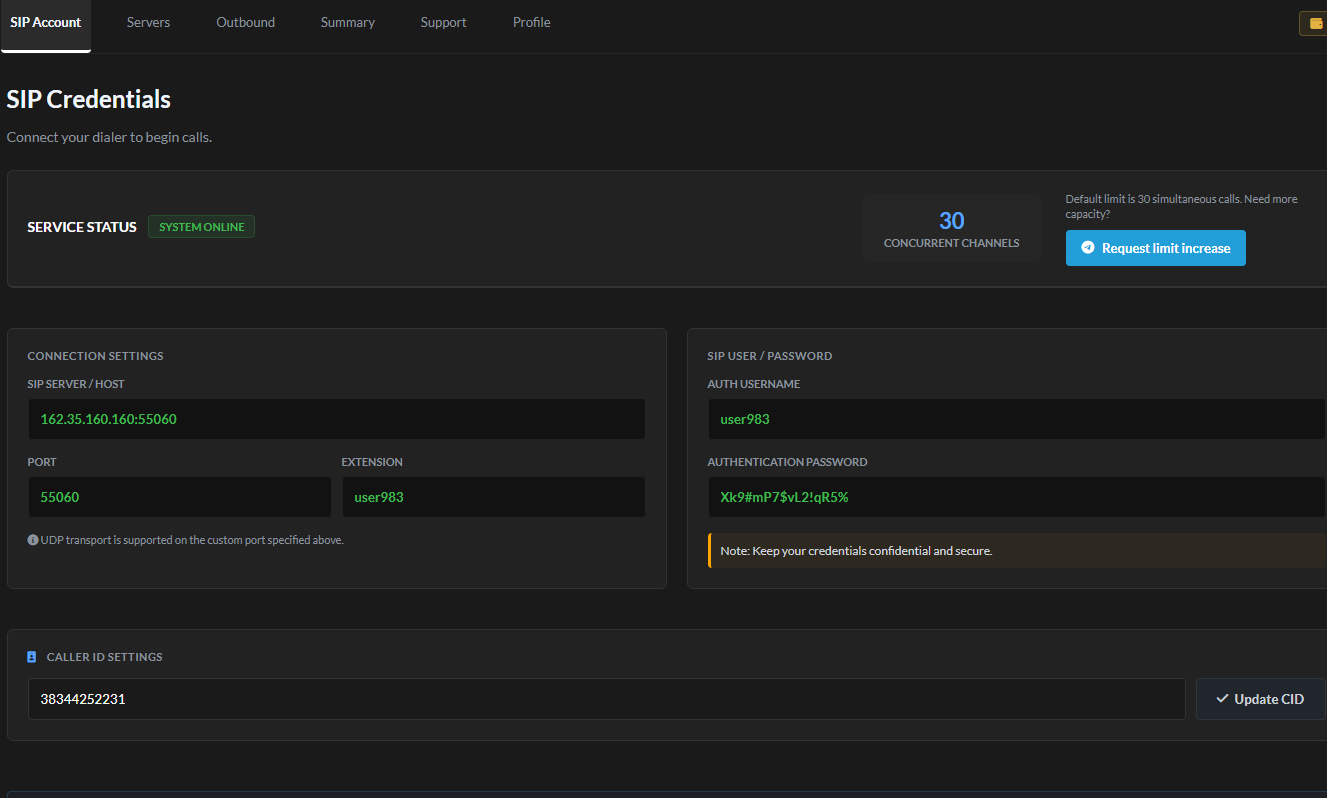


Step 5 — Register and Test Copy your Username, Password, and Domain into the matching fields in Zoiper, then tap Register. If everything was entered correctly, the account status will change to "OK" — that means you're connected and ready to make calls. Dial the echo test command *43 to confirm audio is working in both directions.
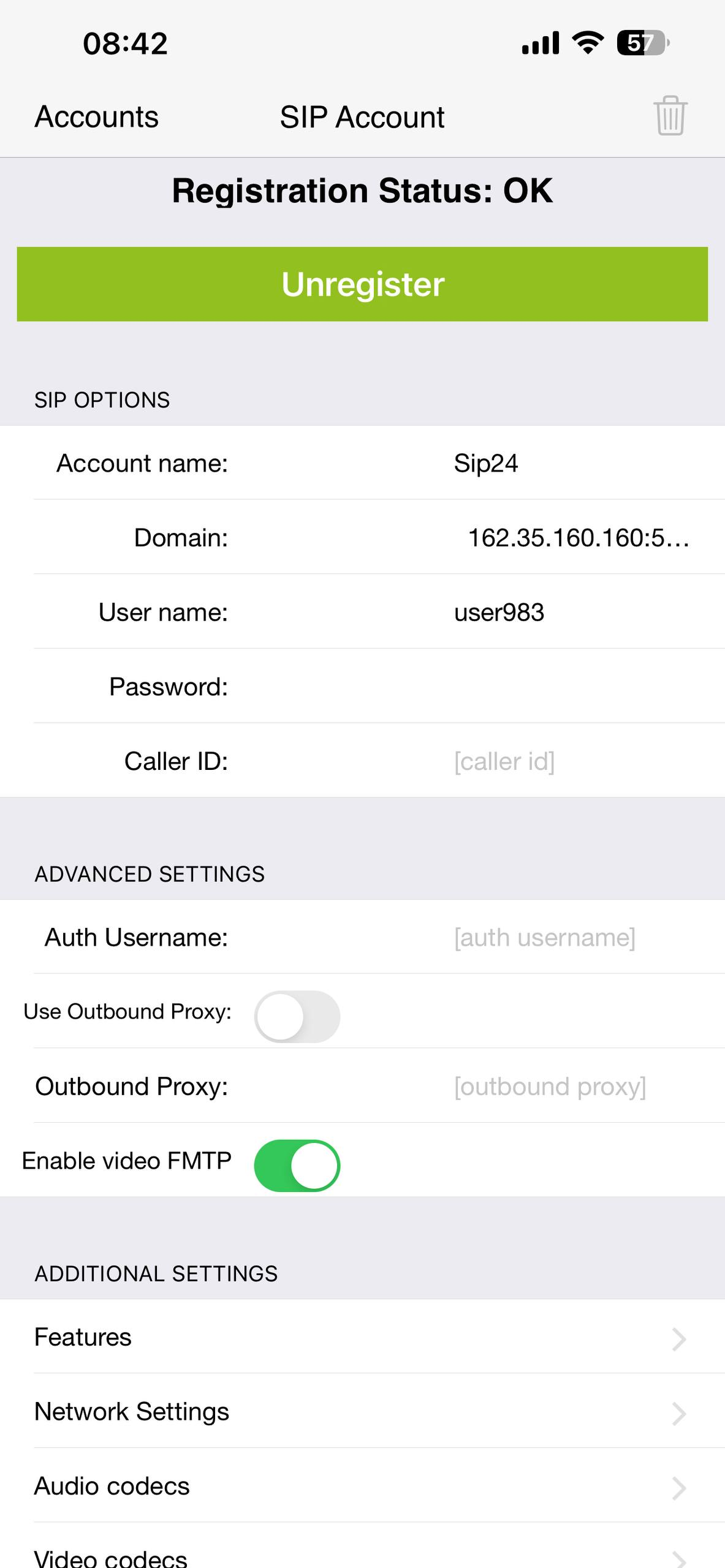


Note on Caller ID: Zoiper doesn't have a built-in field for setting your CallerID. To change it, use the phone command *8080*<number> (do not confuse with 8088). After setting, a 603 Declined response confirms the caller ID is active. Dial *9000 anytime to verify your currently active caller ID.
Configuration Syntax & Phone Control Codes

The system supports built-in control codes for handling caller ID injection, active call audio, and local recording directly through your webphone or standard SIP client:

  • Caller ID Setup: Dial *8080*<number>. A 603 Declined response confirms the caller ID is set.
  • Verify Active Caller ID: Dial *9000.
  • In-Call Audio Playback: Dial *7002[number] to inject pre-recorded audio or intros into an active call.
  • Blind Transfer: Use ##[number] for transfer without holding (supported on webphone and standard SIP clients).
  • Local Recording: Dial *7301 to start and *7300 to stop local recording (client-side recording, nothing passes through our servers).
  • Secure Media: DTLS/SRTP is enabled by default (*7443 to verify).
Route Status & Platform Access

Active routes (optimized):

  • FR (France)
  • US (United States)
  • BE (Belgium)
  • BR (Brazil)
  • ES (Spain)
Germany (DE) Update: Custom caller ID selection is temporarily unavailable for Germany. Calls currently route via random German toll-free or business landline numbers while route engineering continues.
Accounts affected by recent optimization adjustments have been credited with 10 EUR.

  • Platform Access: Access your portal via sip24.cc.
  • Payments: Always request fresh payment details directly inside your user panel prior to funding. Do not use legacy payment info.
Still stuck? Remember that SIP24 support covers account, billing, and server-side issues only — we can't debug third-party app settings or device-specific quirks. If Zoiper still won't register after following every step above, double-check your balance and credentials first, then reach out via Telegram Support.
 

sip24.pw

Active Carder
Joined
04.05.26
Messages
25
Reaction score
6
Points
3
📞 SIP24.CC: Complete Zoiper Setup & Custom Caller ID Guide 📞

SIP24.CC provides direct access to high-performance voice infrastructure with advanced caller ID spoofing and clean routing. Forget the public garbage apps and broken Telegram bots — stable operations require proper server configuration and reliable routing lines.

This guide walks you through connecting your SIP24 trunk to Zoiper and configuring custom caller ID spoofing for outbound calls.

Full Walkthrough: Connecting Zoiper on Your Phone

This guide walks you through downloading Zoiper, creating a SIP account inside the app, and linking it to your SIP24 credentials so you can start making calls. It should take about 5 minutes.

Step 1 — Install Zoiper Zoiper is a free softphone app available for both Android and iOS. Search for "Zoiper" on the Google Play Store or Apple App Store and install it, or use the direct links below:


Step 2 — Open Zoiper and Allow Permissions When you first launch the app, it will ask for microphone and speaker access. Tap Allow for both — without microphone access, calls will connect but you won't be heard. Once permissions are granted, head into the app's Settings menu to begin adding your account.


Step 3 — Add a New Account Manually Go to Accounts and tap the "+" button to add a new account. Zoiper will ask if you already have a SIP account — since you're a SIP24 user, select "Yes". On the next screen, skip the provider list and tap "Manual configuration" instead — this lets you enter your SIP24 credentials directly.


Step 4 — Enter Your SIP24 Credentials You'll now be asked for a SIP Username, SIP Password, and Domain. You'll find all three in your SIP24 dashboard under SIP Account — copy each value exactly as shown there. Also make sure SRTP encryption is toggled on before saving, so your calls stay encrypted.


Step 5 — Register and Test Copy your Username, Password, and Domain into the matching fields in Zoiper, then tap Register. If everything was entered correctly, the account status will change to "OK" — that means you're connected and ready to make calls. Dial the echo test command *43 to confirm audio is working in both directions.


Configuration Syntax & Phone Control Codes

The system supports built-in control codes for handling caller ID injection, active call audio, and local recording directly through your webphone or standard SIP client:

  • Caller ID Setup: Dial *8080*<number>. A 603 Declined response confirms the caller ID is set.
  • Verify Active Caller ID: Dial *9000.
  • In-Call Audio Playback: Dial *7002[number] to inject pre-recorded audio or intros into an active call.
  • Blind Transfer: Use ##[number] for transfer without holding (supported on webphone and standard SIP clients).
  • Local Recording: Dial *7301 to start and *7300 to stop local recording (client-side recording, nothing passes through our servers).
  • Secure Media: DTLS/SRTP is enabled by default (*7443 to verify).
Route Status & Platform Access

Active routes (optimized):

  • FR (France)
  • US (United States)
  • BE (Belgium)
  • BR (Brazil)
  • ES (Spain)

Accounts affected by recent optimization adjustments have been credited with 10 EUR.

  • Platform Access: Access your portal via sip24.cc.
  • Payments: Always request fresh payment details directly inside your user panel prior to funding. Do not use legacy payment info.

Still stuck? Remember that SIP24 support covers account, billing, and server-side issues only — we can't debug third-party app settings or device-specific quirks. If Zoiper still won't register after following every step above, double-check your balance and credentials first, then reach out via Telegram Support.
 

carder450

Carding Novice
Joined
12.08.26
Messages
6
Reaction score
0
Points
1
quick question for austria.

calls are working fine from my asterisk setup but the caller id is sometimes coming through as private when using

i noticed i'm sending the austrian number with the local `0` in some cases and with `43` in others.

what format should i use for the cli? i'm guessing my dialplan is probably doing something wrong here.
 

sip24.pw

Active Carder
Joined
04.05.26
Messages
25
Reaction score
6
Points
3
quick question for austria.

calls are working fine from my asterisk setup but the caller id is sometimes coming through as private when using

i noticed i'm sending the austrian number with the local `0` in some cases and with `43` in others.

what format should i use for the cli? i'm guessing my dialplan is probably doing something wrong here.

For Austria, send the CLI in international format.

Use:

`43XXXXXXXXX`

Do not send the local leading `0` after the country code.

Check the actual INVITE with:

`pjsip set logger on`

The important part is what Asterisk sends in the `From:` header, not only what is configured on the extension.

If the correct CLI is present in the INVITE, send us the call time and destination and we can check it from our side.
 

carder450

Carding Novice
Joined
12.08.26
Messages
6
Reaction score
0
Points
1
For Austria, send the CLI in international format.

Use:

`43XXXXXXXXX`

Do not send the local leading `0` after the country code.

Check the actual INVITE with:

`pjsip set logger on`

The important part is what Asterisk sends in the `From:` header, not only what is configured on the extension.

If the correct CLI is present in the INVITE, send us the call time and destination and we can check it from our side.
yeah this was my dialplan. :ROFLMAO:

i was converting the destination number but forgot to do the same thing for the cli 🤣, so sometimes it was sending the local format.

changed it to 43... and tested again. caller id is showing correctly now.

thanks.🖤
 

carder450

Carding Novice
Joined
12.08.26
Messages
6
Reaction score
0
Points
1
Yes — your instinct is probably right. For Austria, don’t mix the national 0 format and the international format for the outbound CLI.
Domestic Austrian format: 0664..., 01..., 0316...
International/E.164 format: +43 664..., +43 1..., +43 316...
When converting 0... → +43..., remove the leading 0.
For Asterisk/SIP, I would normally normalize the outbound caller ID to E.164,
+436641234567
rather than sometimes sending: 06641234567

and sometimes: 436641234567


Asterisk’s CALLERID() function controls the caller-ID information, but the exact format accepted/presented ultimately depends on your SIP carrier.

Also check the SIP From, P-Asserted-Identity/P-Preferred-Identity, and the carrier’s required caller-ID format. Some providers specifically require the + E.164 form. Good dialplan approach: normalize the number once at the beginning of the outbound route, then use that normalized value consistently for CALLERID(num) and the SIP identity headers. If you paste your Asterisk outbound dialplan and a SIP INVITE from a call where the CLI works vs. one where it shows Private, I can point out exactly where the formatting is going wrong.
thank you chatgpt. :ROFLMAO::ROFLMAO:
 

sip24.pw

Active Carder
Joined
04.05.26
Messages
25
Reaction score
6
Points
3
Service operational. this is simply bump message.
 

sip24.pw

Active Carder
Joined
04.05.26
Messages
25
Reaction score
6
Points
3
Service operational. this is simply bump message.
 

sip24.pw

Active Carder
Joined
04.05.26
Messages
25
Reaction score
6
Points
3
This guy is a scammer! Don't use his service, I've filed an arbitration claim against him:https://crdpro.at/threads/sip24-pw-sold-non-functional-sip-access.70930/
For clarification, the account and balance were active. The issue here was not a failed deposit or a non-functional SIP account.

After funding the account, you contacted support asking how to use the service and how to connect/configure it. SIP24 provides the SIP trunking service itself; we do not configure a customer's dialer, PBX, softphone, caller ID setup, or third-party calling application for them.

A successful deposit does not mean the service is automatically configured on the customer's side.

The correct procedure is to connect the SIP credentials to a compatible SIP client or PBX and configure the outbound route/caller ID there. Our SIP account must first be configured correctly before making test calls.

We are happy to verify whether the SIP account is registering correctly, but customer-side configuration and third-party software setup are not included as part of the service.

Please avoid describing an account as "non-functional" when the actual issue is that it had not been configured correctly on the customer's side.
 

telenet

Carding Novice
Joined
01.09.26
Messages
9
Reaction score
0
Points
1
Get lost
Для уточнения, счет и баланс были активны. Проблема заключалась не в неудачном пополнении счета или неработоспособности счета SIP.

После пополнения счета вы обратились в службу поддержки с вопросом о том, как использовать услугу и как ее подключить/настроить. Компания SIP24 предоставляет саму услугу SIP-транкинга; мы не занимаемся настройкой номеронабирателя, АТС, программного телефона, определением номера звонящего или сторонних приложений для звонков.

Успешное внесение депозита не означает, что услуга автоматически настраивается на стороне клиента.

Правильная процедура заключается в подключении учетных данных SIP к совместимому SIP-клиенту или АТС и настройке исходящего маршрута/идентификатора вызывающего абонента там. Перед совершением тестовых вызовов необходимо сначала правильно настроить нашу учетную запись SIP.

Мы с удовольствием проверим правильность регистрации SIP-аккаунта, однако настройка на стороне клиента и установка стороннего программного обеспечения не входят в стоимость услуги.

Пожалуйста, избегайте описания учетной записи как «неработоспособной», если на самом деле проблема заключается в неправильной настройке на стороне клиента.
 

sip24.pw

Active Carder
Joined
04.05.26
Messages
25
Reaction score
6
Points
3
There seems to be a misunderstanding here, so let’s make the situation clear for everyone reading this thread.

Calling a SIP provider a “scam” simply because you could not get your PBX, dialer, softphone, or other SIP client configured correctly is not the same thing as proving that the SIP service itself is non-functional.

SIP trunking does not work like a normal application where you deposit money and everything on your side is automatically configured. The provider supplies the SIP account and the network-side service. The customer still has to configure their own equipment correctly and make sure the SIP credentials, registrar/domain, transport settings, codecs, firewall/NAT configuration, outbound route and other PBX parameters are correct.

In this particular case, the account was active and the balance was active. There was no failed deposit and the SIP credentials were not simply “dead.” The support request was primarily about how to use and configure the service on the customer's side.

That distinction is important.

If somebody buys a SIP account, puts the credentials into an incorrectly configured PBX, receives a registration failure or cannot place a call, that does not automatically demonstrate that the provider is offline. The same applies to Zoiper, MicroSIP, Asterisk, FreePBX, 3CX, or any other third-party software. A configuration problem inside a customer's environment cannot reasonably be presented as proof that the provider sold a non-functional account.

This is exactly why the setup guide was posted above. The basic procedure is straightforward:

  1. confirm that the SIP credentials being used are the current credentials from the account;
  2. enter them into a compatible SIP client or PBX;
  3. verify that the account actually registers;
  4. check the customer's outbound route and dial-plan;
  5. verify firewall/NAT and transport settings where applicable;
  6. only then start troubleshooting the actual call path.
If the account does not register despite correct credentials and a correctly configured SIP client, that is something support can investigate from the provider side.

What support cannot reasonably do is remotely configure every customer's PBX, dialer, firewall, NAT, softphone, operating system and third-party software for them. Those are customer-side components and configurations.

We have already explained this directly instead of simply ignoring the complaint. We can verify the status of the SIP account and investigate genuine server-side issues. But there is a difference between “the SIP service is unavailable” and “I don't know how to configure my PBX.”

The first is a provider-side problem.

The second is a configuration problem.

So before posting “SCAM,” “NON-FUNCTIONAL,” or telling other members not to use a service, please actually establish which of those two situations you're dealing with.

If you believe the account itself is genuinely non-functional, provide the relevant technical evidence: whether the SIP account registers, the exact error/response received, and enough information to determine whether the failure is occurring on the provider side or inside the customer's configuration.

Simply saying “I couldn't connect it” is not evidence that the service was non-functional.

And for everyone else reading this thread: if you are going to use a SIP trunk with your own PBX or softphone, make sure you understand that buying the SIP access and configuring your own equipment are two separate steps. The fact that you successfully funded an account does not configure your PBX automatically.

We're not interested in arguing with anyone. If there is a genuine provider-side issue, report it and it will be checked. If the account is operational and the problem is on the customer's configuration side, calling the provider a scam doesn't change that fact.
 

telenet

Carding Novice
Joined
01.09.26
Messages
9
Reaction score
0
Points
1
There seems to be a misunderstanding here, so let’s make the situation clear for everyone reading this thread.

Calling a SIP provider a “scam” simply because you could not get your PBX, dialer, softphone, or other SIP client configured correctly is not the same thing as proving that the SIP service itself is non-functional.

SIP trunking does not work like a normal application where you deposit money and everything on your side is automatically configured. The provider supplies the SIP account and the network-side service. The customer still has to configure their own equipment correctly and make sure the SIP credentials, registrar/domain, transport settings, codecs, firewall/NAT configuration, outbound route and other PBX parameters are correct.

In this particular case, the account was active and the balance was active. There was no failed deposit and the SIP credentials were not simply “dead.” The support request was primarily about how to use and configure the service on the customer's side.

That distinction is important.

If somebody buys a SIP account, puts the credentials into an incorrectly configured PBX, receives a registration failure or cannot place a call, that does not automatically demonstrate that the provider is offline. The same applies to Zoiper, MicroSIP, Asterisk, FreePBX, 3CX, or any other third-party software. A configuration problem inside a customer's environment cannot reasonably be presented as proof that the provider sold a non-functional account.

This is exactly why the setup guide was posted above. The basic procedure is straightforward:

  1. confirm that the SIP credentials being used are the current credentials from the account;
  2. enter them into a compatible SIP client or PBX;
  3. verify that the account actually registers;
  4. check the customer's outbound route and dial-plan;
  5. verify firewall/NAT and transport settings where applicable;
  6. only then start troubleshooting the actual call path.
If the account does not register despite correct credentials and a correctly configured SIP client, that is something support can investigate from the provider side.

What support cannot reasonably do is remotely configure every customer's PBX, dialer, firewall, NAT, softphone, operating system and third-party software for them. Those are customer-side components and configurations.

We have already explained this directly instead of simply ignoring the complaint. We can verify the status of the SIP account and investigate genuine server-side issues. But there is a difference between “the SIP service is unavailable” and “I don't know how to configure my PBX.”

The first is a provider-side problem.

The second is a configuration problem.

So before posting “SCAM,” “NON-FUNCTIONAL,” or telling other members not to use a service, please actually establish which of those two situations you're dealing with.

If you believe the account itself is genuinely non-functional, provide the relevant technical evidence: whether the SIP account registers, the exact error/response received, and enough information to determine whether the failure is occurring on the provider side or inside the customer's configuration.

Simply saying “I couldn't connect it” is not evidence that the service was non-functional.

And for everyone else reading this thread: if you are going to use a SIP trunk with your own PBX or softphone, make sure you understand that buying the SIP access and configuring your own equipment are two separate steps. The fact that you successfully funded an account does not configure your PBX automatically.

We're not interested in arguing with anyone. If there is a genuine provider-side issue, report it and it will be checked. If the account is operational and the problem is on the customer's configuration side, calling the provider a scam doesn't change that fact.
This is a reply from an AI, ahahahaha, guys, don't trust these scammers https://radikal.host/i/Yix6FK
 

carder450

Carding Novice
Joined
12.08.26
Messages
6
Reaction score
0
Points
1
There seems to be a misunderstanding here, so let’s make the situation clear for everyone reading this thread.

Calling a SIP provider a “scam” simply because you could not get your PBX, dialer, softphone, or other SIP client configured correctly is not the same thing as proving that the SIP service itself is non-functional.

SIP trunking does not work like a normal application where you deposit money and everything on your side is automatically configured. The provider supplies the SIP account and the network-side service. The customer still has to configure their own equipment correctly and make sure the SIP credentials, registrar/domain, transport settings, codecs, firewall/NAT configuration, outbound route and other PBX parameters are correct.

In this particular case, the account was active and the balance was active. There was no failed deposit and the SIP credentials were not simply “dead.” The support request was primarily about how to use and configure the service on the customer's side.

That distinction is important.

If somebody buys a SIP account, puts the credentials into an incorrectly configured PBX, receives a registration failure or cannot place a call, that does not automatically demonstrate that the provider is offline. The same applies to Zoiper, MicroSIP, Asterisk, FreePBX, 3CX, or any other third-party software. A configuration problem inside a customer's environment cannot reasonably be presented as proof that the provider sold a non-functional account.

This is exactly why the setup guide was posted above. The basic procedure is straightforward:

  1. confirm that the SIP credentials being used are the current credentials from the account;
  2. enter them into a compatible SIP client or PBX;
  3. verify that the account actually registers;
  4. check the customer's outbound route and dial-plan;
  5. verify firewall/NAT and transport settings where applicable;
  6. only then start troubleshooting the actual call path.
If the account does not register despite correct credentials and a correctly configured SIP client, that is something support can investigate from the provider side.

What support cannot reasonably do is remotely configure every customer's PBX, dialer, firewall, NAT, softphone, operating system and third-party software for them. Those are customer-side components and configurations.

We have already explained this directly instead of simply ignoring the complaint. We can verify the status of the SIP account and investigate genuine server-side issues. But there is a difference between “the SIP service is unavailable” and “I don't know how to configure my PBX.”

The first is a provider-side problem.

The second is a configuration problem.

So before posting “SCAM,” “NON-FUNCTIONAL,” or telling other members not to use a service, please actually establish which of those two situations you're dealing with.

If you believe the account itself is genuinely non-functional, provide the relevant technical evidence: whether the SIP account registers, the exact error/response received, and enough information to determine whether the failure is occurring on the provider side or inside the customer's configuration.

Simply saying “I couldn't connect it” is not evidence that the service was non-functional.

And for everyone else reading this thread: if you are going to use a SIP trunk with your own PBX or softphone, make sure you understand that buying the SIP access and configuring your own equipment are two separate steps. The fact that you successfully funded an account does not configure your PBX automatically.

We're not interested in arguing with anyone. If there is a genuine provider-side issue, report it and it will be checked. If the account is operational and the problem is on the customer's configuration side, calling the provider a scam doesn't change that fact.
You are right
 
Top Bottom