





sip24.pw
Carding Novice
- Joined
- 04.05.26
- Messages
- 14
- Reaction score
- 5
- Points
- 3
 SIP24.CC: Complete Zoiper Setup & Custom Caller ID Guide
 SIP24.CC provides direct access to high-performance voice infrastructure with advanced caller ID spoofing and clean routing. Forget the public garbage apps and broken Telegram bots — stable operations require proper server configuration and reliable routing lines.
This guide walks you through connecting your SIP24 trunk to Zoiper and configuring custom caller ID spoofing for outbound calls.
Full Walkthrough: Connecting Zoiper on Your Phone
This guide walks you through downloading Zoiper, creating a SIP account inside the app, and linking it to your SIP24 credentials so you can start making calls. It should take about 5 minutes.
Step 1 — Install Zoiper Zoiper is a free softphone app available for both Android and iOS. Search for "Zoiper" on the Google Play Store or Apple App Store and install it, or use the direct links below:
- Android: Google Play Store
- iOS: Apple App Store

Step 2 — Open Zoiper and Allow Permissions When you first launch the app, it will ask for microphone and speaker access. Tap Allow for both — without microphone access, calls will connect but you won't be heard. Once permissions are granted, head into the app's Settings menu to begin adding your account.

Step 3 — Add a New Account Manually Go to Accounts and tap the "+" button to add a new account. Zoiper will ask if you already have a SIP account — since you're a SIP24 user, select "Yes". On the next screen, skip the provider list and tap "Manual configuration" instead — this lets you enter your SIP24 credentials directly.


Step 4 — Enter Your SIP24 Credentials You'll now be asked for a SIP Username, SIP Password, and Domain. You'll find all three in your SIP24 dashboard under SIP Account — copy each value exactly as shown there. Also make sure SRTP encryption is toggled on before saving, so your calls stay encrypted.
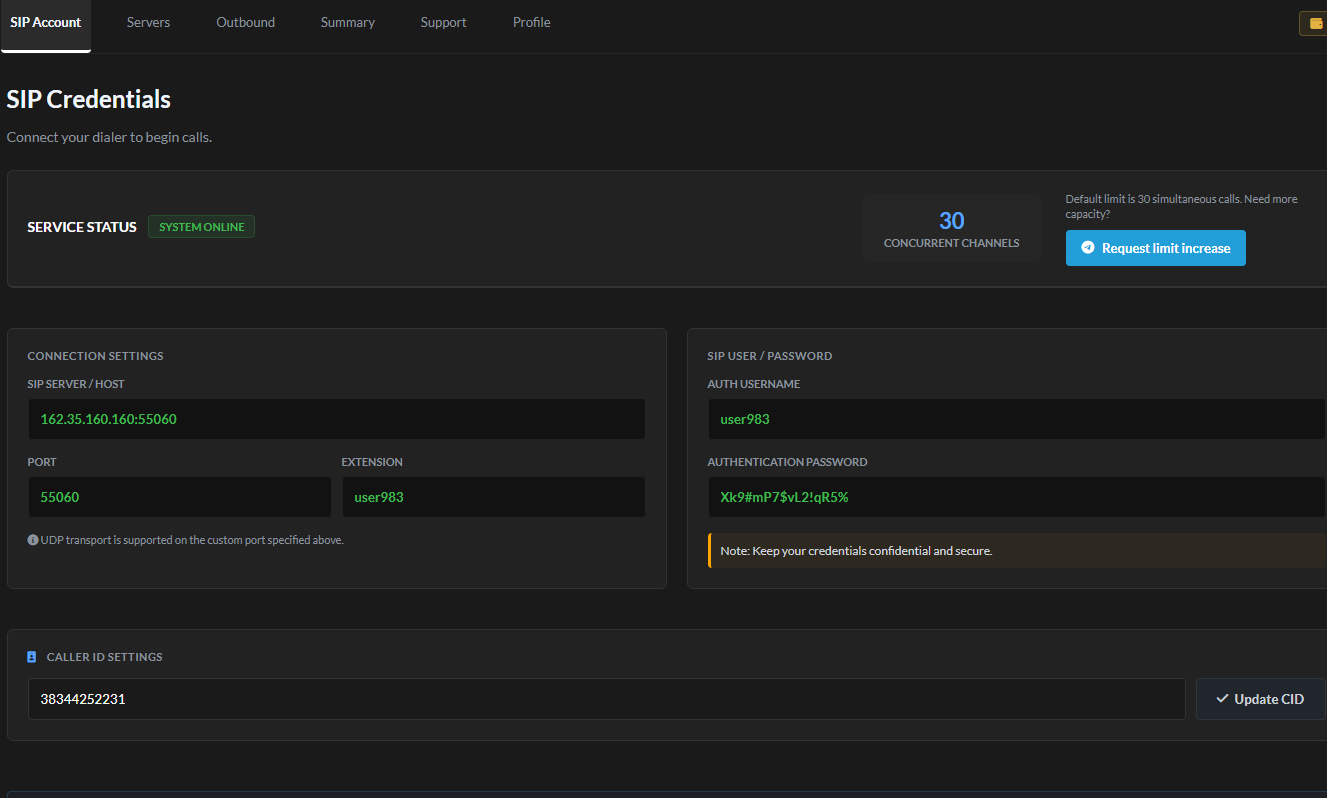
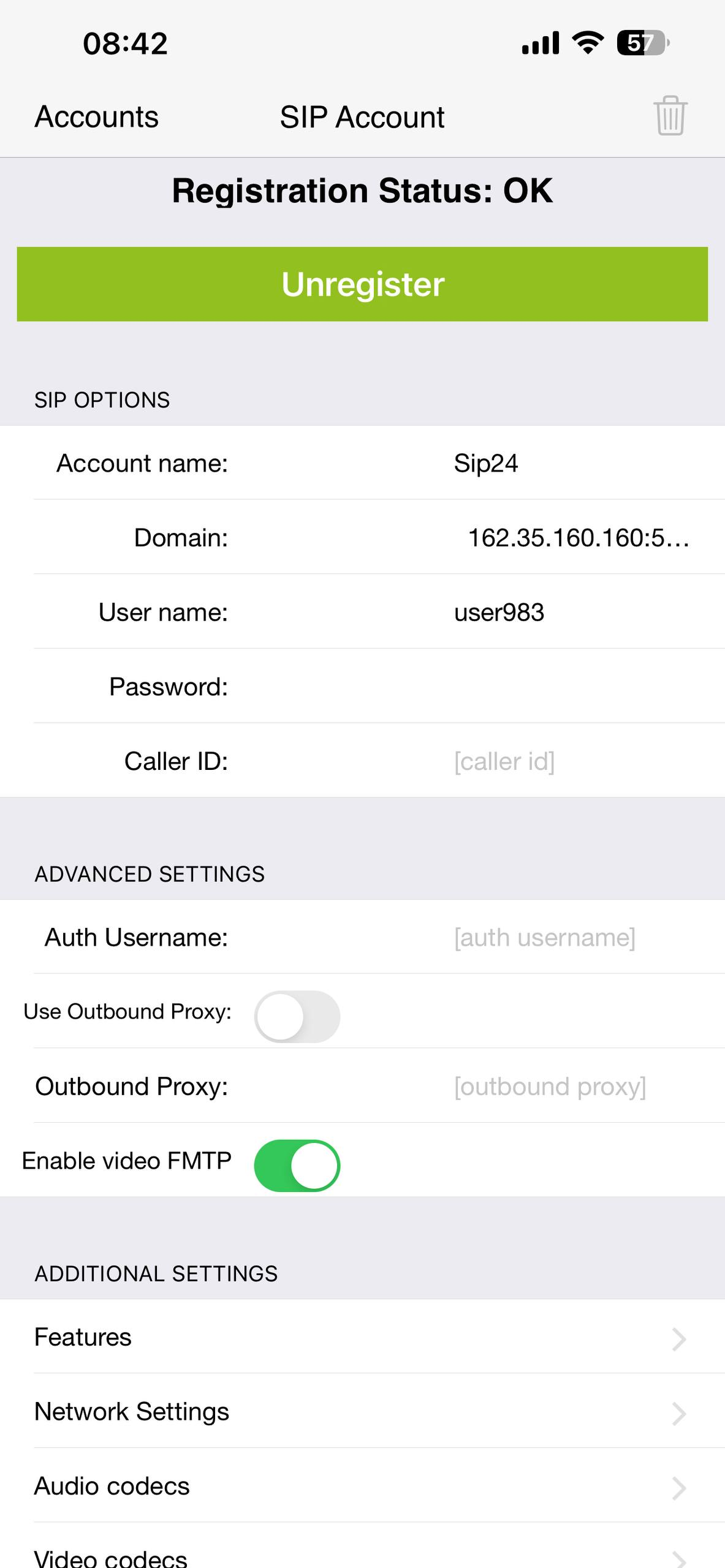
Step 5 — Register and Test Copy your Username, Password, and Domain into the matching fields in Zoiper, then tap Register. If everything was entered correctly, the account status will change to "OK" — that means you're connected and ready to make calls. Dial the echo test command *43 to confirm audio is working in both directions.
Configuration Syntax & Phone Control Codes
The system supports built-in control codes for handling caller ID injection, active call audio, and local recording directly through your webphone or standard SIP client:
- Caller ID Setup: Dial *8080*<number>. A 603 Declined response confirms the caller ID is set.
- Verify Active Caller ID: Dial *9000.
- In-Call Audio Playback: Dial *7002[number] to inject pre-recorded audio or intros into an active call.
- Blind Transfer: Use ##[number] for transfer without holding (supported on webphone and standard SIP clients).
- Local Recording: Dial *7301 to start and *7300 to stop local recording (client-side recording, nothing passes through our servers).
- Secure Media: DTLS/SRTP is enabled by default (*7443 to verify).
Active routes (optimized):
- FR (France)
- US (United States)
- BE (Belgium)
- BR (Brazil)
- ES (Spain)
Accounts affected by recent optimization adjustments have been credited with 10 EUR.
- Platform Access: Access your portal via sip24.cc.
- Payments: Always request fresh payment details directly inside your user panel prior to funding. Do not use legacy payment info.



 , so sometimes it was sending the local format.

